Web app
The web app is where people work with their organization's data, change its model, apply its actions, and manage who can do what. It is an ordinary client of the same API your agents use, with no extra privileges.
The web app comes with Happy Enterprise. A person signs in to their organization with an emailed code or a password, or by accepting an invite, and works under their own permissions. Every screen is built from the organization’s own model, so a maintenance team sees incidents and machines, a dealership sees cars and deals, and neither needs a line of custom code.
It has no special access. It calls the organization REST API with the person’s session, exactly as your own app would. Row level security, restricted types, shared and assigned objects, action grants, and the isolation between organizations apply to it as to any other caller. A technician who sees only the incidents assigned to them sees only those in the web app, too.
Objects
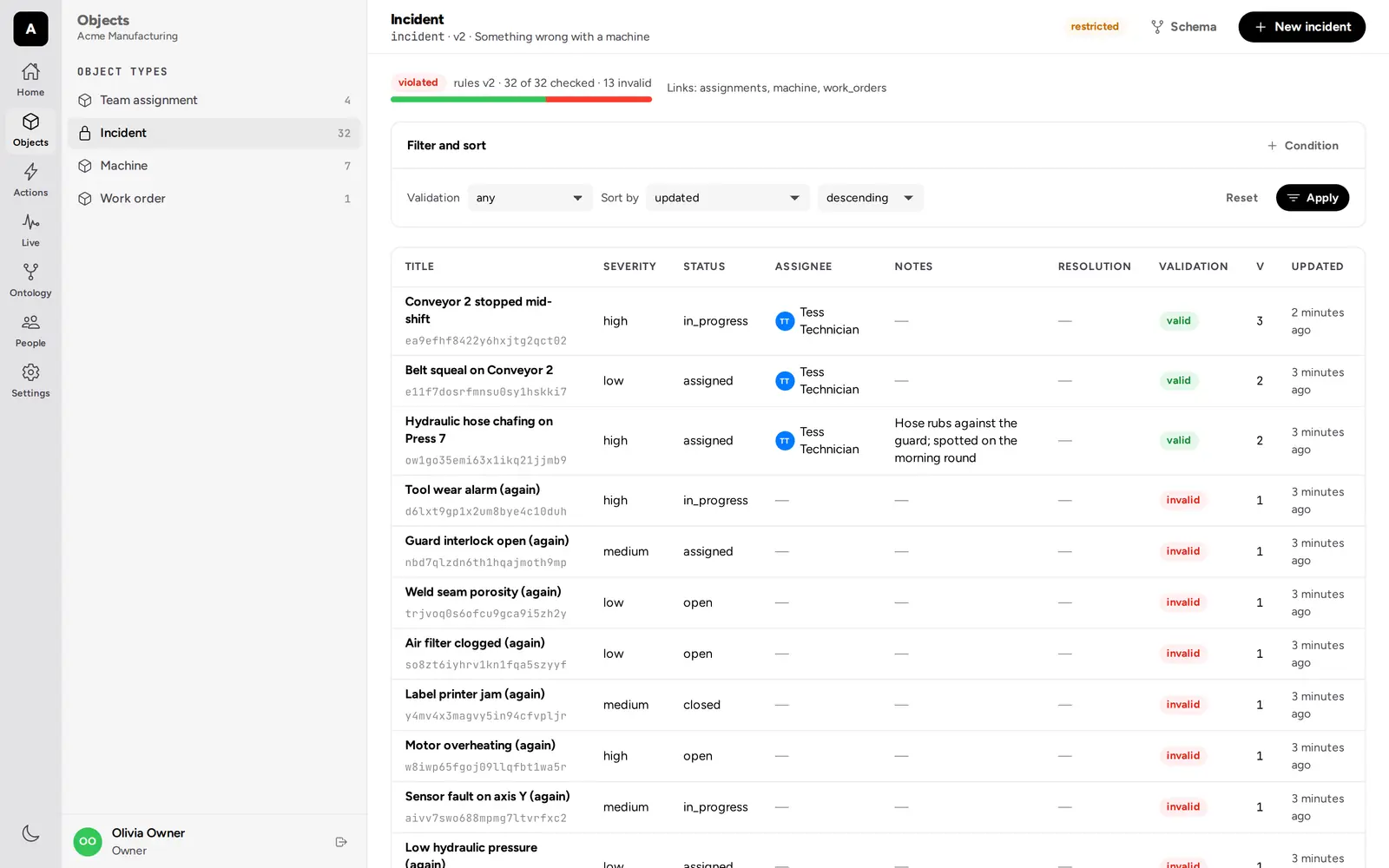
Each object type has a table: filters on any property, sorting, keyset paging, and a validation column that shows which objects meet the current rules. The table updates live as people and agents change objects.
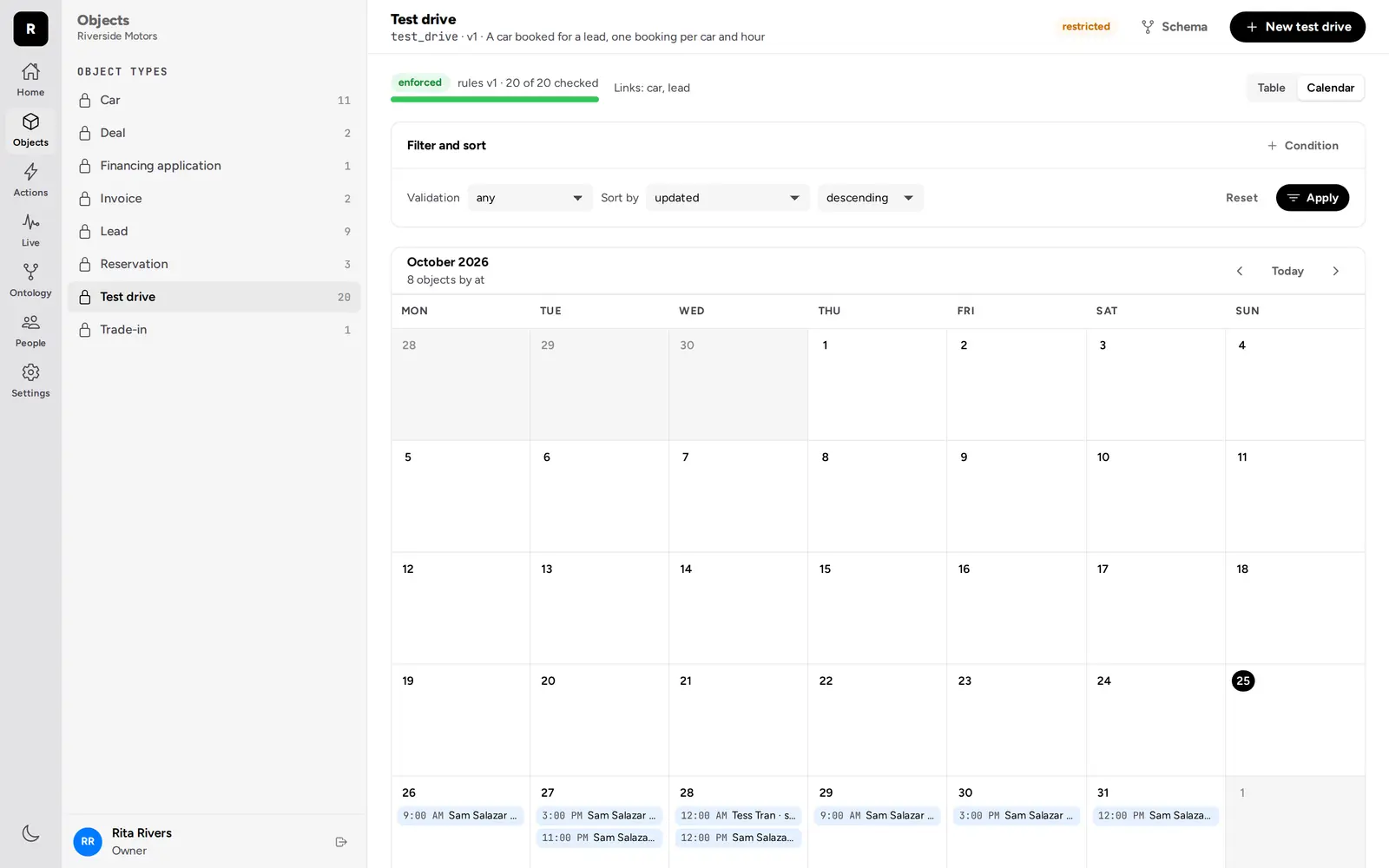
Types with a date or timestamp property also have a calendar view, a month at a time, by the property you pick: test drives, reservations, agent runs. A schedule that creates objects of the type shows its upcoming occurrences there too, dashed, before they run.
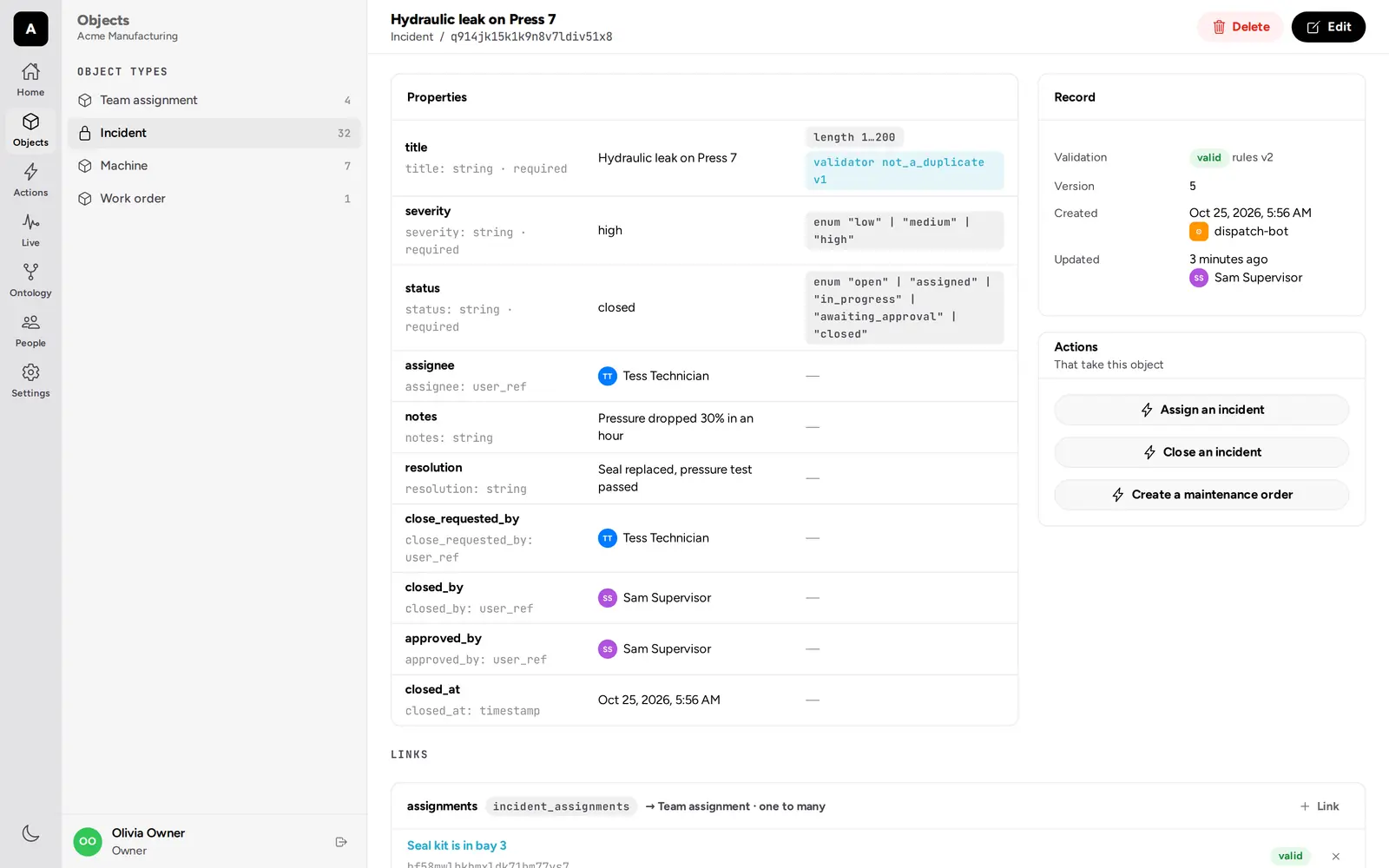
An object’s page shows its properties with their types and rules, its validation state and version, its links, and the actions that take it as a parameter. Creating and editing an object checks it against its type as you save, with every problem shown next to its field, and an edit made against a version someone else has changed since is refused, not merged.
The ontology
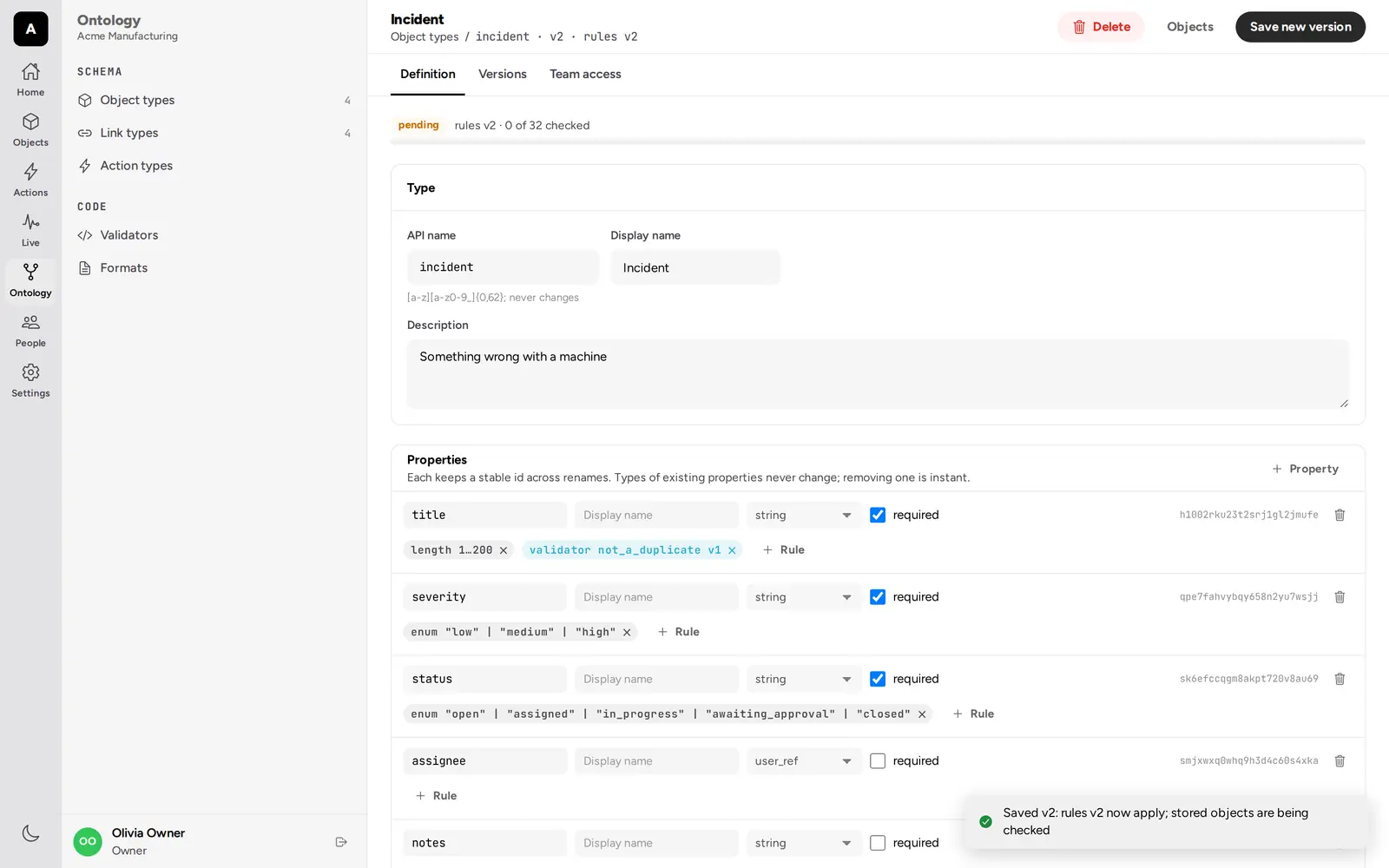
People with manage_ontology change the model in the web app while the
organization keeps working:
- Object types: properties, their types and rules, custom validators and formats, every earlier version, and, for owners, which teams reach the type’s objects, all of them or only those shared with each member.
- Link types, with their cardinality and the names of both ends.
- Action types: parameters, criteria and edits as conditions or Python, effects, versions, grants, and the webhook secret.
Saving a type with new rules shows the background check of the stored objects as it runs, and the objects that fail stay in the table, marked invalid, until someone fixes them.
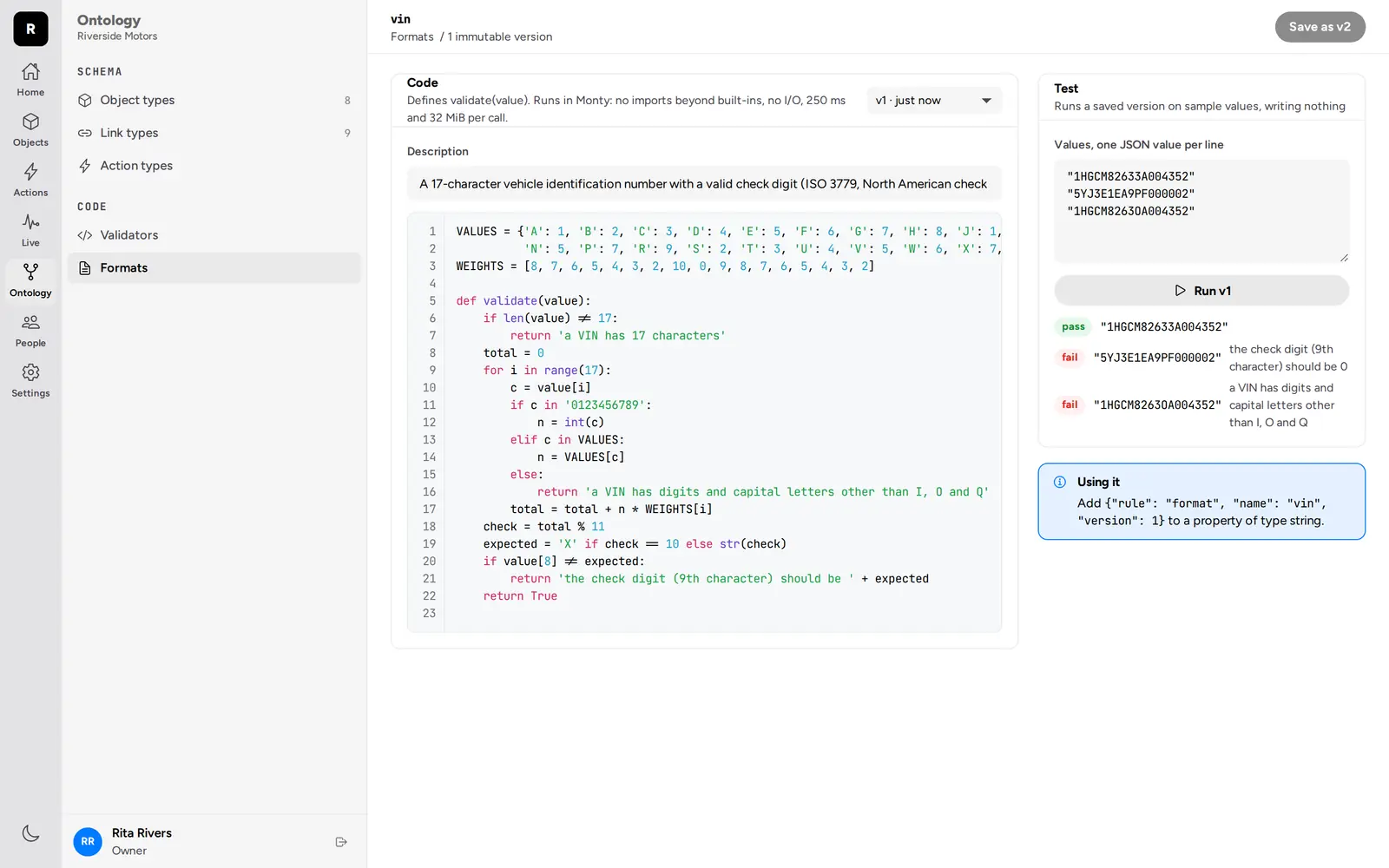
Custom validators and formats have a code editor and a test bench that runs a version on sample values without writing anything.
Actions and the audit log
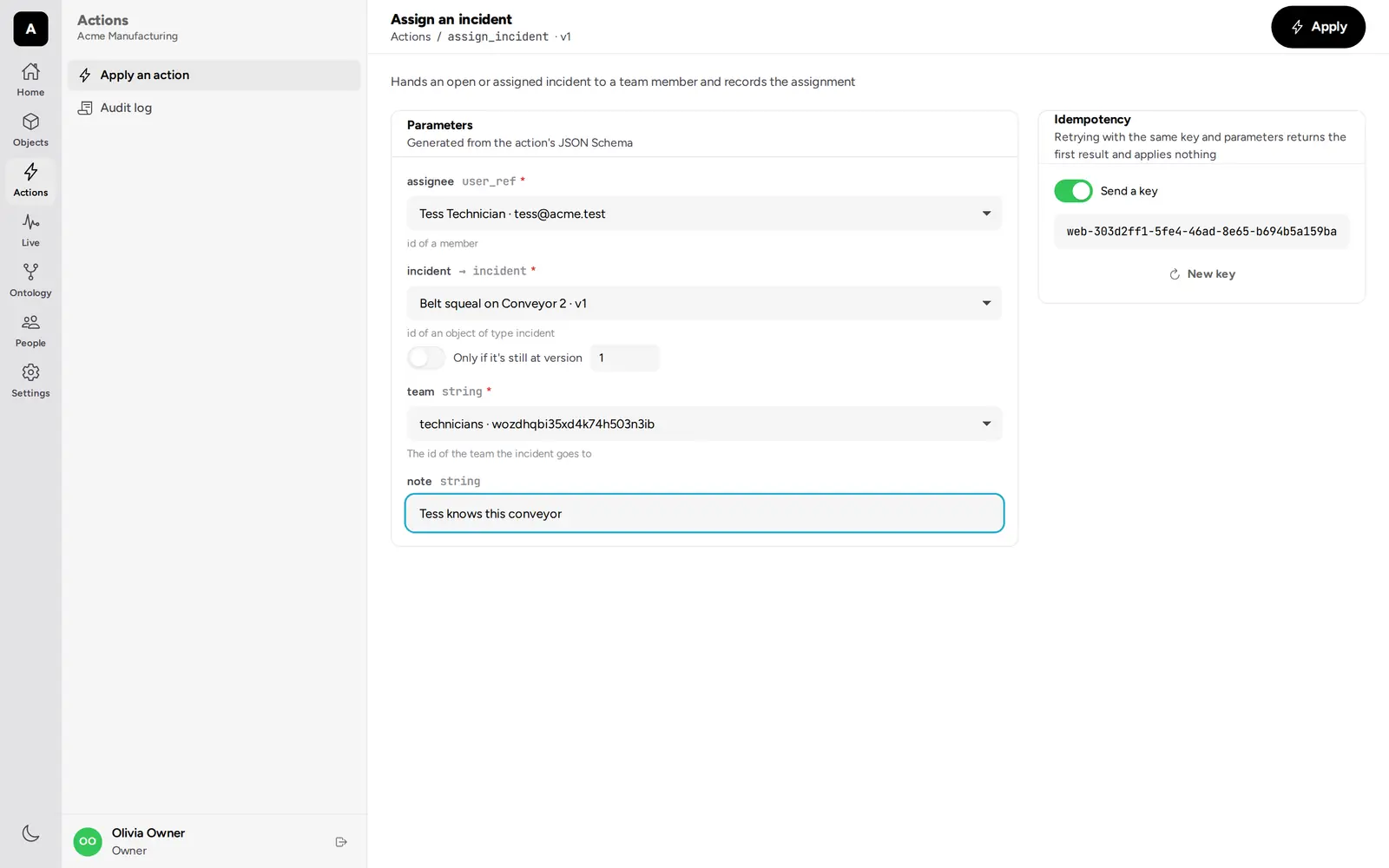
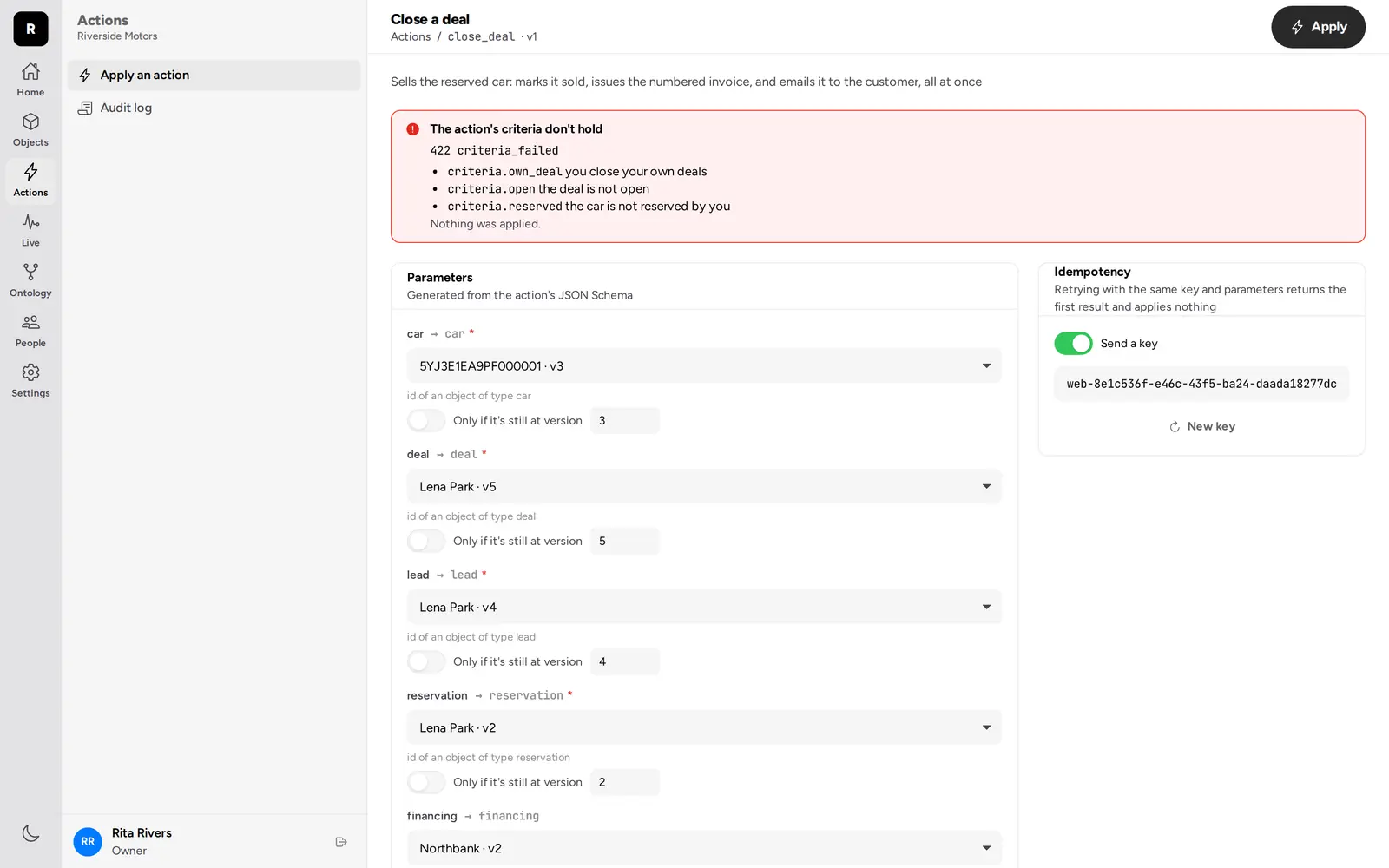
Each action the person may apply has a form generated from its parameters: pickers for objects and people, the option to pin the version of an object they read, and an idempotency key. A refusal says why, criterion by criterion, and that nothing was applied.
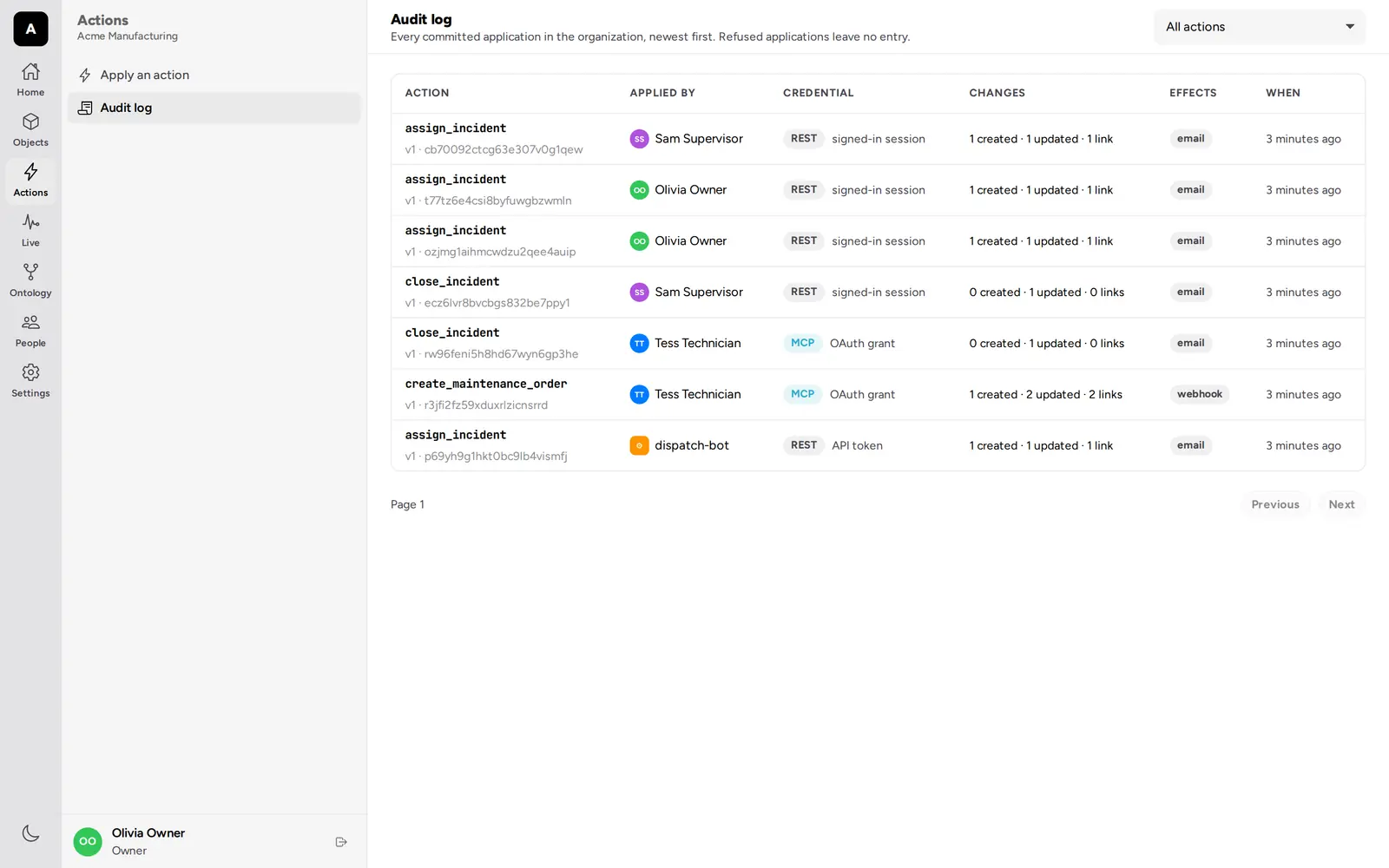
The audit log lists every application the person may see: who applied it, through which credential and whether over REST or MCP, and what it changed. One application shows its parameters, its result, and the delivery of each webhook and email.
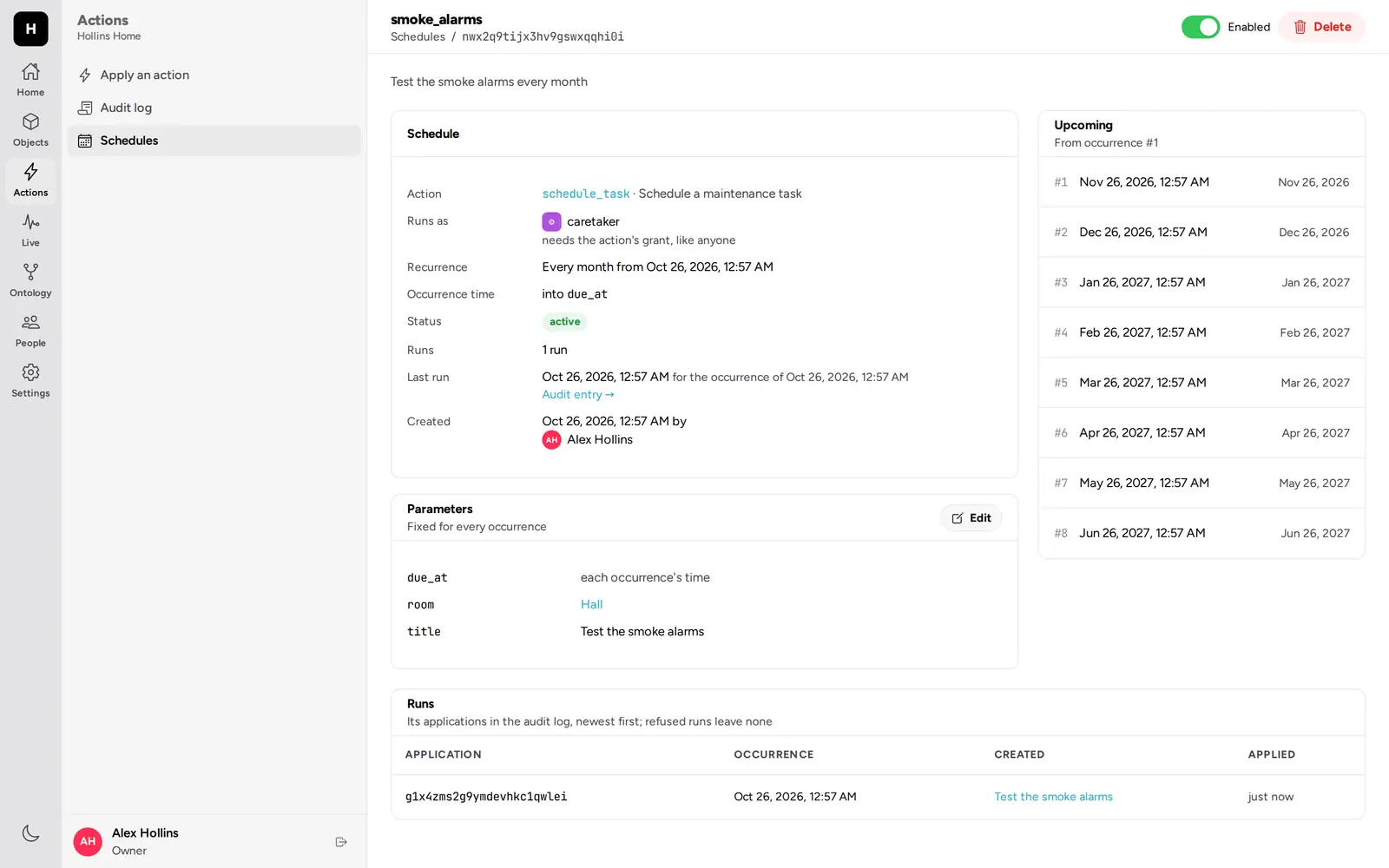
Owners also manage schedules here: the action, the agent it runs as, the recurrence, the fixed parameters, the next occurrences, and every run with its application. A schedule can be paused, its parameters changed, or a new one created from a form.
The live feed
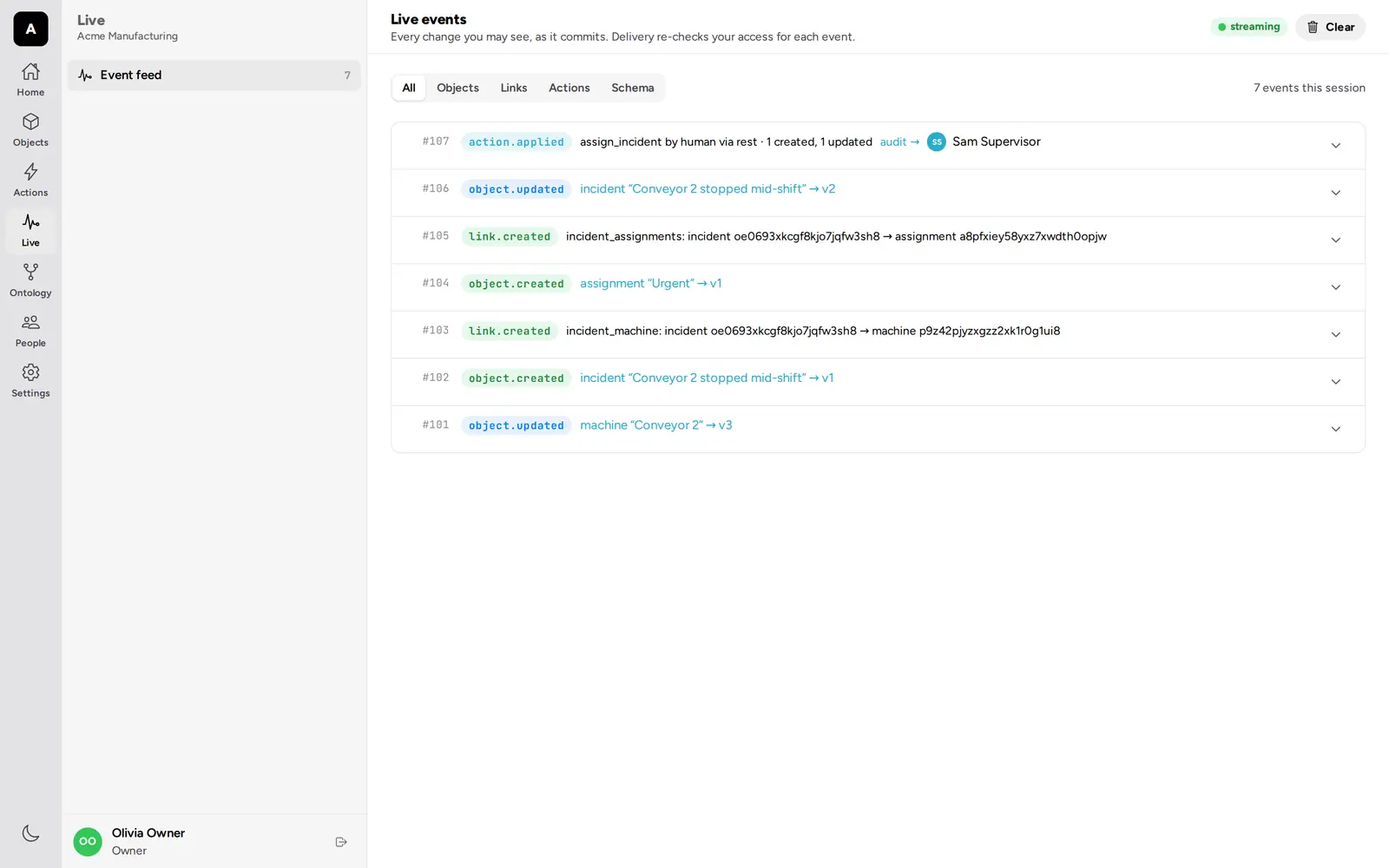
The live feed is the organization’s event stream as it happens: objects, links, schema changes, validation progress, and action applications, each checked against the person’s access before it is shown.
Signing in
The front page, /, signs in to the server
email first: the
work email, then the emailed code, then Choose an organization from
the ones the address may enter, each marked when the person is its first
owner, invited, or joins through a verified domain. Entering one opens its
session, with the second factor as usual. With no organization to enter,
the page says to ask for an invite, or offers to create one. The verified
address is kept while its identity token lasts, 15 minutes, so Switch
organization in the sidebar needs no new code; signing out forgets it.
Where the server allows sign-up,
Create a new organization opens /signup: the organization’s name,
its address, checked as you type (taken, reserved, or invalid), and the
owner’s own name. It signs the new owner in. With Turnstile configured,
the email step shows its check.
Each organization also has its own sign-in page at its address,
/{slug} (/acme). It offers Email code, and Password when the
server has passwords
on. A password signs in only someone who already has one; joining still
takes an invite or an emailed code, and a forgotten password needs an
emailed code or a reset link from an owner. An organization’s id in that
place leads on to its slug.
Invite and set-password pages name the organization and its address. Accepting an invite asks for a display name and, with passwords on, an optional password, so the next sign-in needs no email.
A set-password link opens /reset-password. It asks for the new password
twice, sets it, signs the person out everywhere else, and sends them on to
sign in. An owner link from the console works the same way, and while the
organization has no owner it makes that address its first owner.
People, teams, and settings
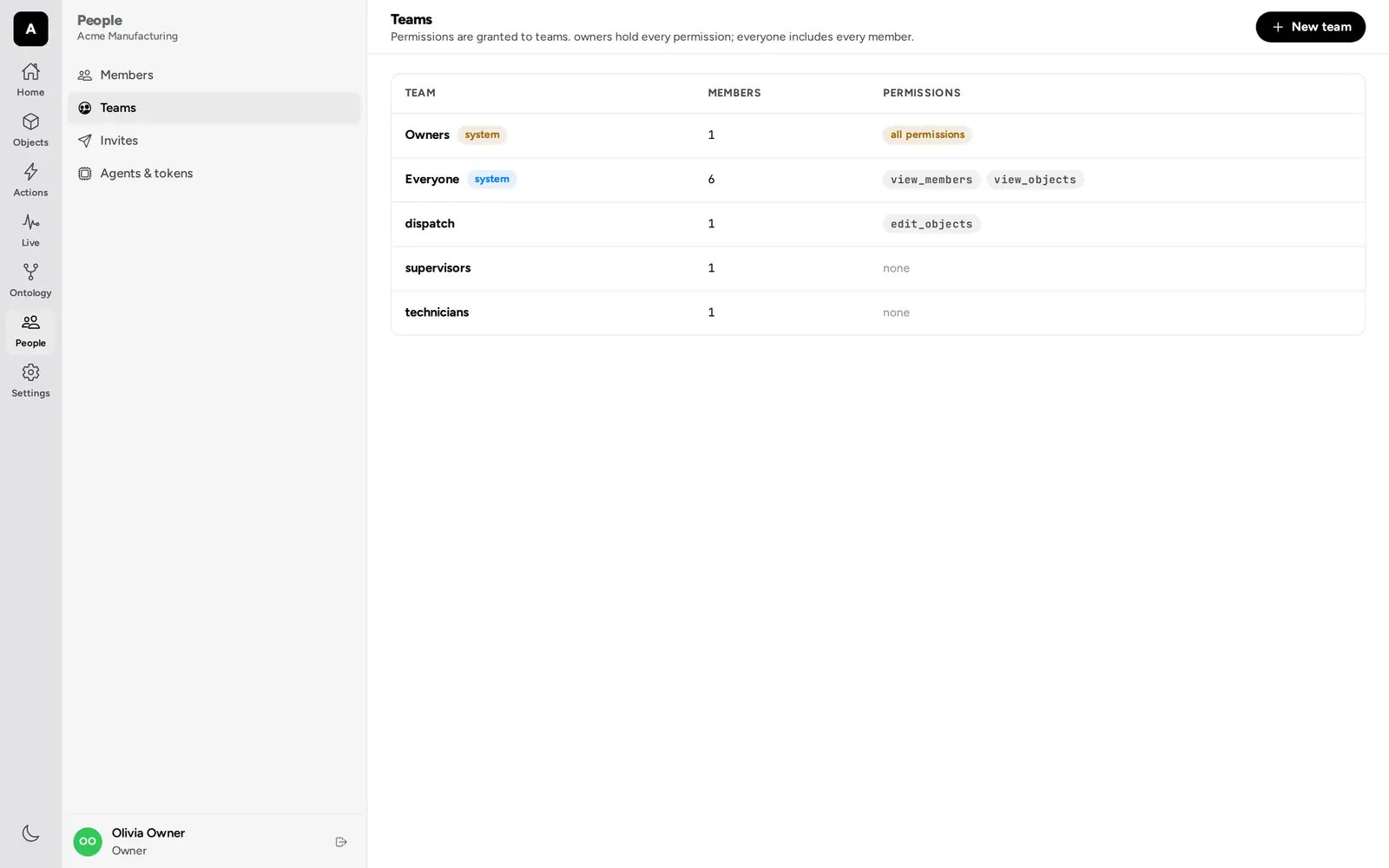
- People: members and their profiles, invites, and agent accounts with
their API tokens. With passwords on, owners make a Reset link for a
member, a single-use set-password link to send them. While the server
sends no email (
EMAIL_PROVIDER=log), a new invite shows its link to copy and pass on. - Teams and the permissions granted to them.
- The organization: its name and photo, its sign-in address (shown, never changed), verified email domains, and whether two-factor authentication is required.
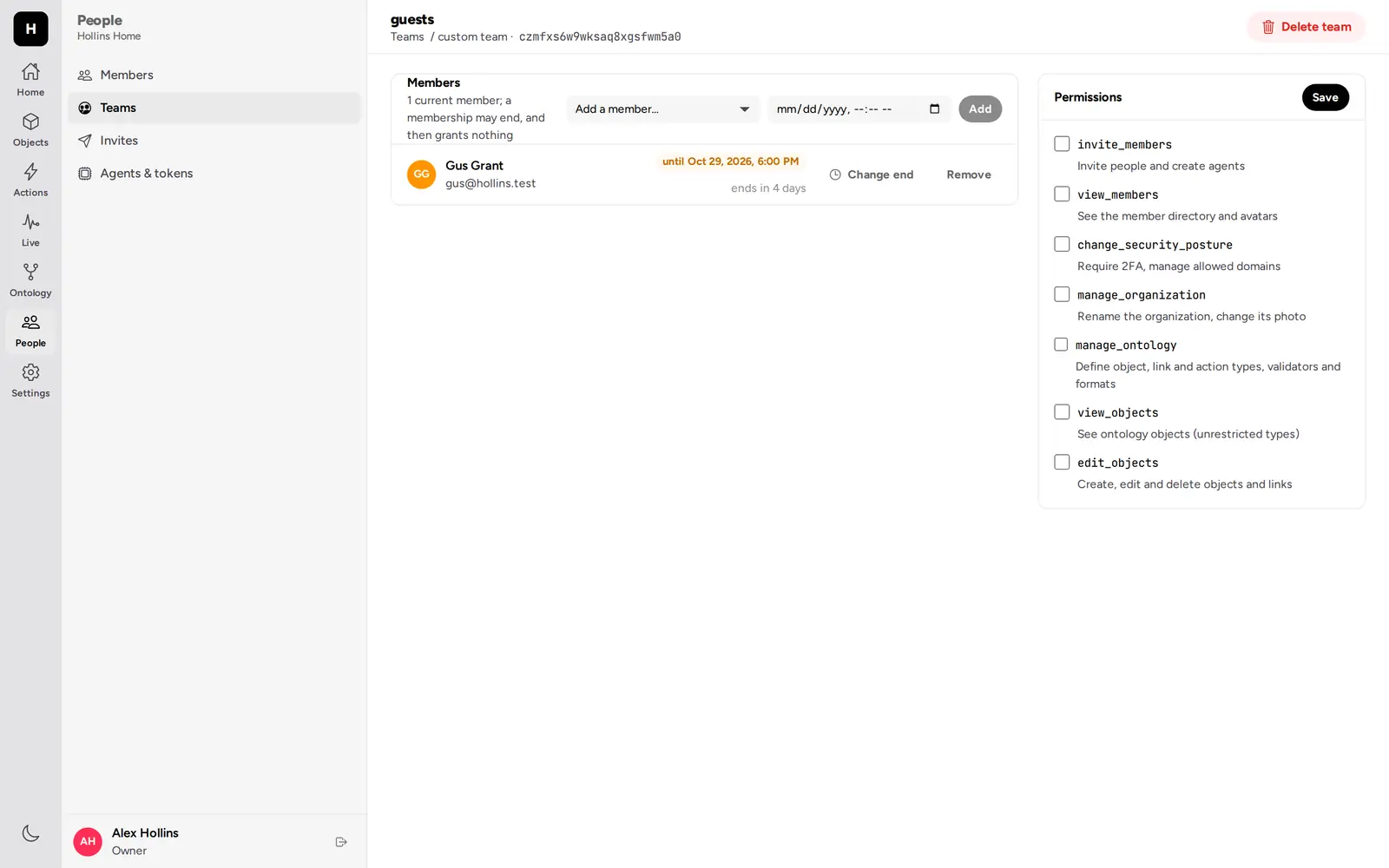
Adding someone to a custom team can set when the membership ends, for a guest or a contractor, and the end can be changed or removed later.
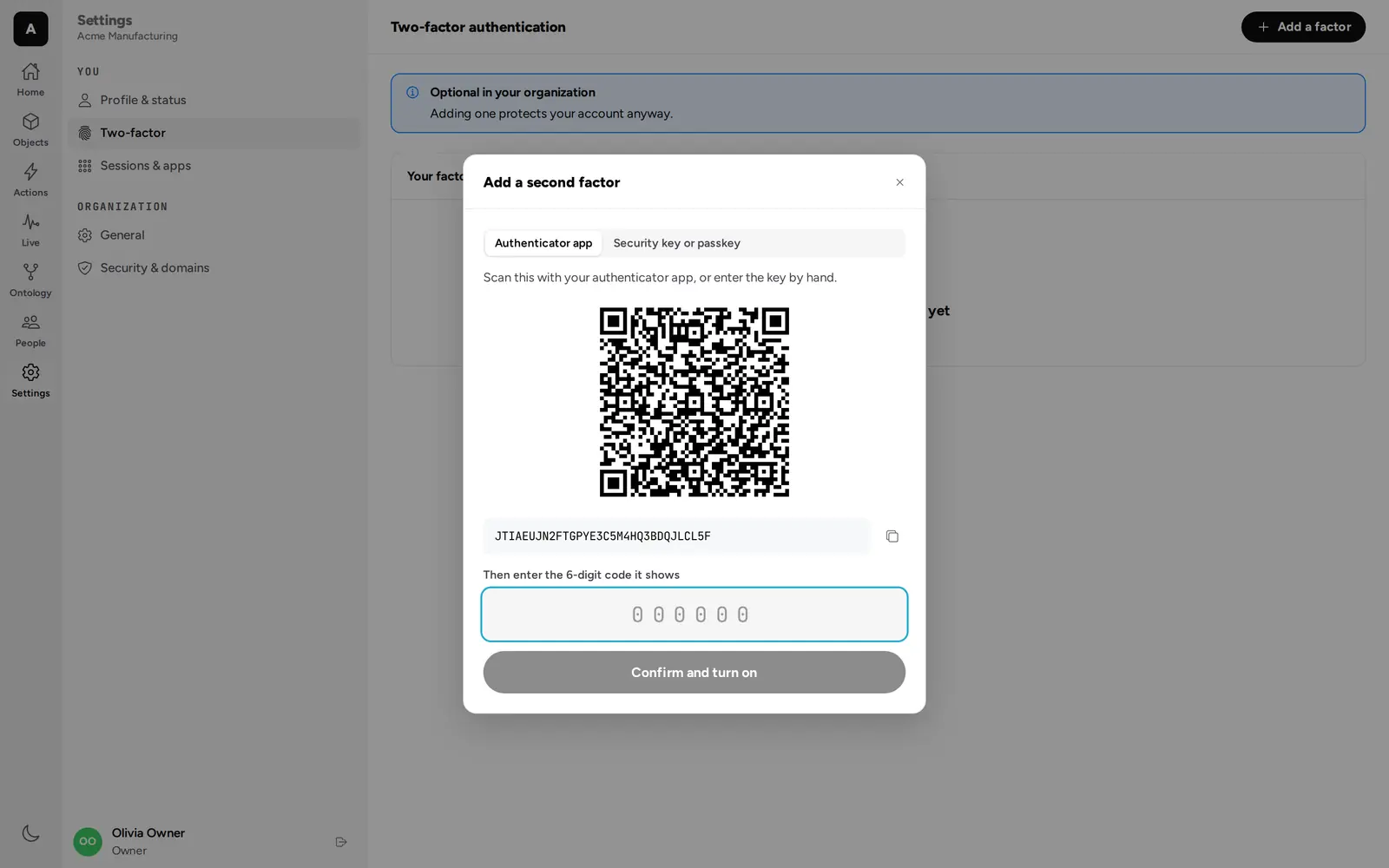
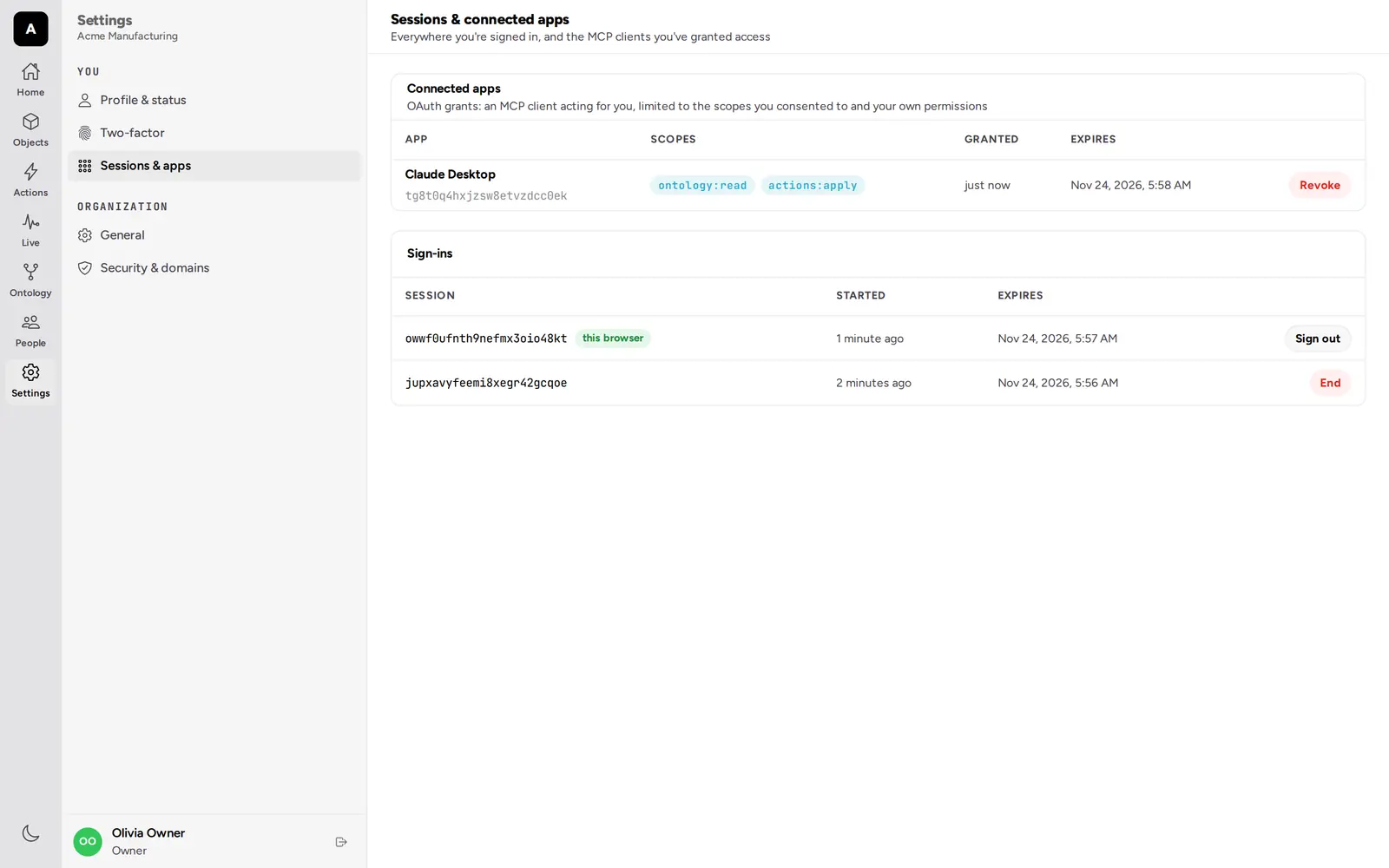
Each person also has their own settings: their profile, their password (set or change it, with the current one; saving signs out their other sessions), their second factors (authenticator apps and security keys or passkeys), and their sessions and connected apps, the MCP clients they have granted access, which they can revoke there.
The operator console
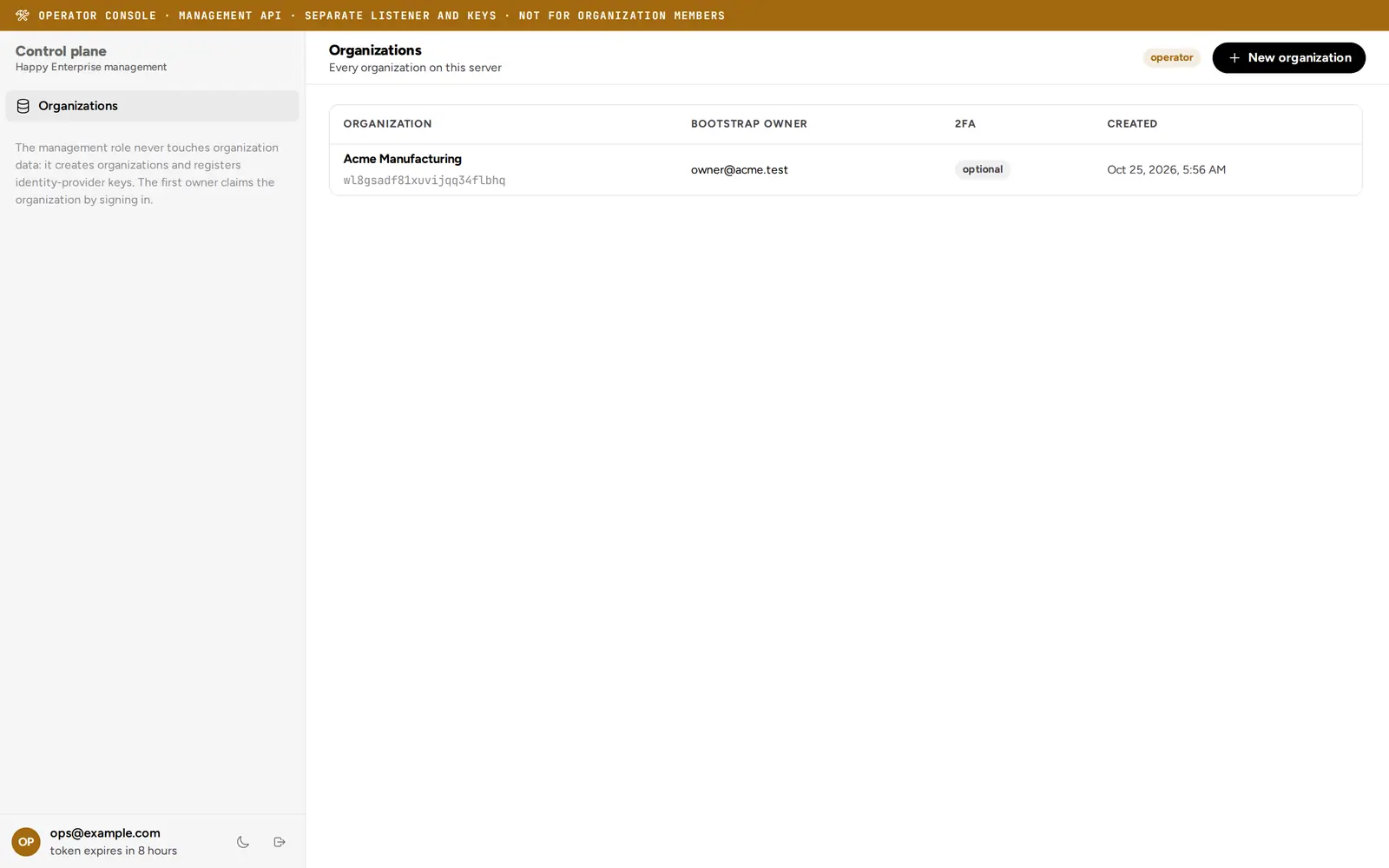
The console, at /console, is for whoever runs the server, not for members
of an organization. It talks to the management API, on its own listener and
with its own keys: it creates organizations and registers the signing keys of
their identity providers, makes owner links, manages operators with their
passwords and security keys, and shows the management audit log.
On a new server it opens on setup: the setup code from the server log,
the admin’s username, and a password typed twice. After that it signs in
with whatever the server enables: a username and password, a
security key, or a management JWT, pasted
or signed in the browser from a private key (it can generate a key pair
whose public half you add to MANAGEMENT_JWT_PUBLIC_KEYS). Enrollment
links open its /console/enroll page. When an operation needs a fresh
confirmation, it asks for a touch of the key, or for the password from an
operator without one, and retries; the sidebar counts down to the
session’s end.
Creating an organization asks for its name, the owner’s address, and the organization’s address, suggested from the name and checked as you type; it cannot be changed later. An organization’s page shows its address and has an Owner link button: leave the address empty for the bootstrap owner, and copy the single-use link it shows.
Running it
The web app is a static single-page app in the distribution’s web/
directory. The Docker image already serves it,
with the APIs, on one origin: see the
Quickstart.
The server can serve the built files itself: WEB_DIR points at them, and
MANAGEMENT_MOUNT=/mgmt puts the management API next to them for the
console. For development, the app’s own development server serves it and
proxies both APIs on one origin
(HE_ORG_URL=http://127.0.0.1:8080 HE_MANAGEMENT_URL=http://127.0.0.1:9090 npm run dev,
at http://localhost:5173).
In production
Build it with npm run build and serve the files in web/dist from one
origin, over HTTPS, at the root of that origin. The app is built for /,
so it cannot sit under a sub-path without a rebuild, and passkeys and the
console’s key signing need a secure context. The same origin must:
- send
/v1,/orgs,/.well-known, and/healthto the organization API, unchanged, with these settings:- the client’s
Hostheader kept, because the MCP endpoint accepts only the host ofPUBLIC_BASE_URLor those inMCP_ALLOWED_HOSTS(nginx sends the upstream’s address unless told otherwise; Caddy keeps it); - response buffering off and a long read timeout, because live updates
are a server-sent event stream (
/v1/ontology/events); - a request body limit of at least 25 MiB, the attachment limit of
POST /v1/files(nginx’s default is 1 MB);
- the client’s
- send
/mgmtto the management API without the/mgmtprefix, only if the operator console should work there, and only to operators: the management API listens on127.0.0.1:9090by default for a reason; - answer any other path with
index.html, except under/assets/, where a missing file should be a404. Files under/assets/have hashed names and can be cached as immutable;index.htmlshould beno-cache.
Then set, on the server:
PUBLIC_BASE_URLto that origin. It is more than a base URL: it sets the invite links (<origin>/invite, a page of the web app), the passkey relying party and origin, the OAuth issuer, and the MCP endpoint’s host check.CLIENT_IP_HEADER=x-real-ip, so that rate limits key on the client rather than on the proxy. (Withx-forwarded-forthe server takes the last address in the list, so a proxy behind another proxy must not append to it.)
An nginx server block that does all of this:
server {
  listen 443 ssl;
  server_name enterprise.example.com;
  # ssl_certificate ...; ssl_certificate_key ...;

  root /srv/happy-enterprise/web/dist;
  client_max_body_size 26m;

  location ~ ^/(v1|orgs|\.well-known|health)(/|$) {
    proxy_pass http://127.0.0.1:8080;
    proxy_http_version 1.1;
    proxy_set_header Host $http_host;
    proxy_set_header X-Real-IP $remote_addr;
    proxy_buffering off;
    proxy_read_timeout 1h;
  }

  location /mgmt/ {
    allow 10.0.0.0/8;  # operators only
    deny all;
    proxy_pass http://127.0.0.1:9090/;
  }

  location /assets/ {
    add_header Cache-Control "public, max-age=31536000, immutable";
    try_files $uri =404;
  }

  location / {
    add_header Cache-Control "no-cache";
    try_files $uri /index.html;
  }
}
with PUBLIC_BASE_URL=https://enterprise.example.com and
CLIENT_IP_HEADER=x-real-ip. See also
Configuration and
Deploying.
Your own apps can sit next to it: they use the same API under the same rules.